
One of the benefits of Clean Smarts is the ability to track task-by-task completion of work. When task-by-task tracking is enabled, cleaners report on what was done (and whether there were any tasks they were unable to complete), and managers can see a report of what was done, when it was done, and by whom it was done. You even have the option of collecting data on how much time cleaners spend on each task.
First, you will set the company wide task tracking behavior. You can then override the company-wide default by selecting a different setting for a particular location. We describe both of these steps below:
Enabling Task-by-task Tracking Company-wide
-
Option 1: Click your profile in the bottom left corner and go to Company Settings.
Option 2: Use the search bar at the top left (or press Ctrl+K) and type Company Settings. -
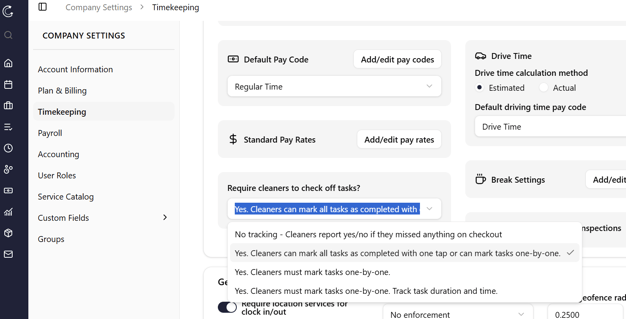
Scroll down to "Require cleaners to check off tasks?" and choose a setting:
-
The first option is "No tracking. Cleaners report yes/no if they missed anything on checkout." This means that task-by-task tracking is TURNED OFF. Cleaners will see the list of tasks, but they don't mark anything as completed.
-
The second option is "Yes. Cleaners can mark all tasks as completed with one tap or can mark tasks one-by-one." This means that task-by-task tracking is TURNED ON. Cleaners can tap on tasks one-by-one to mark them as completed with a green check mark. Further, this option will enable a button at the top of their checklist that says, "Select all." This shortcut allows cleaners to easily mark everything as complete with one tap.
-
The third option is "Yes. Cleaners must mark tasks one-by-one." This means task-by-task tracking is TURNED ON. Cleaners won't see the "Select all" button, which means that they need to tap each task, one-by-one, to mark everything as complete on their shift.
-
The fourth option is "Yes. Cleaners must mark tasks one-by-one. Track task duration and time" This means task-by-task tracking is TURNED ON. Cleaners won't see the "Select all" button, which means that they need to tap each task, one-by-one, to mark everything as complete on their shift. Further, this option has the added benefit for managers of capturing the time spent on each task.
-
-
Scroll to the bottom of the page and click "Submit" to save your settings.
Enabling Task-by-task Tracking for a Specific Location
-
Option 1: Click your profile in the bottom left corner and go to Manage Locations.
Option 2: Use the search bar at the top left (or press Ctrl+K) and type Manage Locations or the specific location you want to update. -
Scroll down to "Require cleaners to check off tasks?" and choose a setting:
-1.png?width=632&height=361&name=image%20(1)-1.png)
-
Scroll to the bottom of the form and click Save Changes.
You can edit or delete tasks at any time by clicking on the task options.