
How Do I Remove or Archive a User?
Archive a user when an employee, contractor, or customer should no longer access Clean Smarts. Archiving removes their login access and keeps their historical records, so reports, messages, issues, and past work still make sense.
Applies to: Account administrators and managers who can edit users in the web portal.
Before You Start
- Make sure you are archiving the right person. Archiving removes their access immediately.
- If the user has open work, reassign any shifts, inspections, work orders, issues, or location responsibilities before archiving them.
- If you need to permanently delete a user's personal information instead of archiving the account, send the request to support@cleansmarts.com.
Archive a User
- Open Manage Users from your profile menu in the bottom-left corner, or press Ctrl/Cmd + K and search for Users.
- Make sure the user list is set to Active.
- Find the user you want to archive.
- In that user's row, click the three-dot action menu.
- Select Archive User.
- In the confirmation window, review Confirm Archive for [user name].
- Click Archive.
After the user is archived, Clean Smarts removes them from the active user list and shows a confirmation message.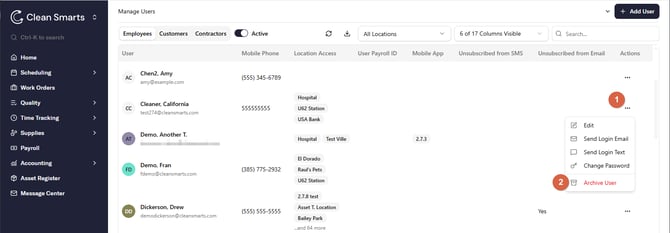
What Changes When a User Is Archived?
Archived users can no longer log in to Clean Smarts and cannot be assigned to locations. They are kept in the system for history and reporting.
|
Area |
What happens |
|---|---|
|
Login access |
The user can no longer sign in. |
|
Assignments |
The user cannot be assigned to locations after they are archived. |
|
Historical reports |
Past timesheets and historical reports still include the user where relevant. |
|
Messages, issues, and other records |
Data the user already created is not deleted. |
|
Billing |
Archived non-customer users are not counted as active user profiles for monthly billing after prorated adjustments. |
Restore an Archived User
If someone needs access again, you can restore their account from the inactive user list.
- Open Manage Users.
- Switch the user list from Active to Inactive.
- Find the archived user.
- Click the three-dot action menu.
- Select Unarchive.
After restoring the user, review their location access, shifts, inspections, and work assignments. Restored users may need to be assigned again before they can see their work.
Tips and Troubleshooting
I don't see Archive User. Make sure the list is set to Active. The archive option only appears for active users. You also need permission to edit users.
I archived the wrong user. Switch the list to Inactive, open the user's action menu, and select Unarchive. Then review their assignments before they start working again.
Will this delete timesheets or messages? No. Archiving removes access, but it does not delete historical timesheets, messages, issues, or other records the user created.
Will archiving change my invoice? If you are billed by user count, archived non-customer users are not included as active user profiles. Any prorated credit or charge appears on the next invoice.
Can I permanently delete the user instead? Archiving is the self-service option. For permanent deletion of a user's information, send the request to support@cleansmarts.com.