
Clean Smarts gives you a lot of flexibility to automatically remove break or meal time to an employee's time. These adjustments can be customized for each shift. For example, you can have a 30-minute break automatically deducted from an employee's time after they've been on the clock for at least 5 hours. This adjustment happens automatically when the employee clocks out.
Steps to modify adjustments
You can modify the shift adjustment settings if you have access to the Organization module.
- Option 1: Click your profile in the bottom left corner, go to Manage Locations and select a location.
Option 2: Use the search bar at the top left (or press Ctrl+K) to go to Manage Locations, or type the location name to go there directly. - Click the Shifts & Inspections tab.
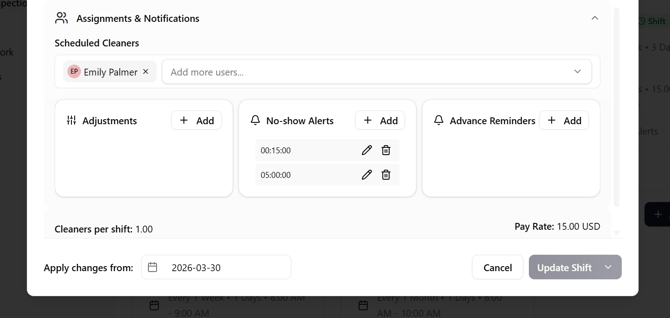
- Create or select a shift, click on the Assignments & Notifications section and then the Add button.
-
Select "Create a lunch break or rest break" option from the dropdown.
-2.png?width=670&height=304&name=image%20(1)-2.png)
-
Select whether time should be subtracted or added to the employee's time and how many hours or minutes to add or subtract in hour:minute format ("0:30" is thirty minutes, for example).
-
Enter the duration that the employee has to be clocked in before the adjustment is made. For example, "8:00" means that the time adjustment will only be applied when an employee logs at least 6 hours on that shift.
-2.png?width=670&height=499&name=image%20(2)-2.png)
7. Update shift.
-2.png?width=670&height=319&name=image%20(3)-2.png)