
Scan points let you verify that cleaners physically reached specific areas of a location. You attach a barcode or QR code to a sublocation, the cleaner scans it from the mobile app, and Clean Smarts records when and where they were. Paired with GPS, it's proof that the work happened where it was supposed to.
This guide walks through building sublocations, printing codes, making a scan required, and what your cleaners see on their phones.
Applies to: Account administrators and managers who set up locations. You need the Locations (Edit) module on your role (or account-manager access) to open a location's Scope of Work tab. Scan points live on service locations, so the tab only appears once the location is saved as a service location.
Before You Start
- Scan points attach to sublocations—the rooms or areas you break a location into (for example, "First Floor > Office 101"). Build your sublocations first, then add codes to them.
- A scan point is just a code (barcode or QR) tied to a sublocation. Printing a code doesn't force cleaners to scan it. To require it, use Toggle Require Scan.
- Codes are scanned from the Clean Smarts mobile app, not the web portal.
Open the Scope of Work Tab
- Open the location you want to set up. Use the search bar at the top (or press Ctrl/Cmd + K) and type the location name, or open it from Manage Locations.
- In the location's left-hand menu, select Scope of Work.
You'll see a tree of the location and its sublocations, with columns for Location Name, Checklists, Scan, and Actions.
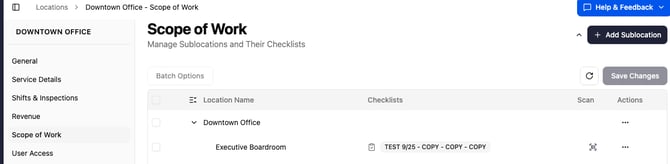 Scope of Work tab showing the Downtown Office sublocation tree with Location Name, Checklists, Scan, and Actions columns and the Add Sublocation button The Scope of Work tab — the Scan column shows a scan icon next to any sublocation that requires a scan.
Build Your Sublocations
If you haven't broken the location into areas yet, do that first:
- Click Add Sublocation in the top-right corner to add an area under the main location.
- To nest an area inside another (for example, "Office 101" under "First Floor"), open the ⋯ menu on the parent row and choose Add Sublocation, or drag a row onto another to nest it.
- Click a name to rename it inline, then click Save Changes when you're done arranging the tree.
Print a Barcode or QR Code
You can print codes for several sublocations at once, or one at a time.
For several at once:
- Select the checkbox next to each sublocation you want a code for.
- Click Batch Options in the top-left of the toolbar.
- Choose Print Barcodes or Print QR Codes.
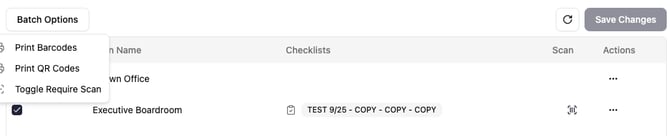 Batch Options dropdown open showing Print Barcodes, Print QR Codes, and Toggle Require Scan, with one sublocation row selected Batch Options acts on the rows you've checked — here, Print Barcodes, Print QR Codes, and Toggle Require Scan.
For a single sublocation:
- Open the ⋯ menu on that row.
- Choose Print Barcode or Print QR Code.
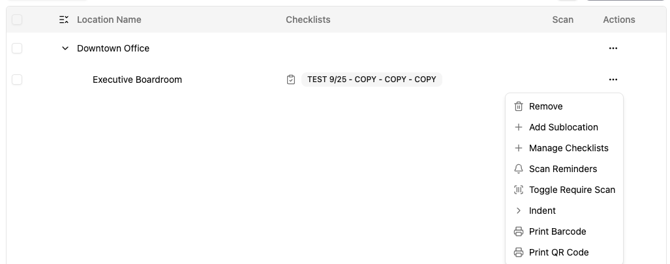 Sublocation row ⋯ menu open showing Remove, Add Sublocation, Manage Checklists, Scan Reminders, Toggle Require Scan, Indent, Print Barcode, and Print QR Code The ⋯ menu on any sublocation row holds the per-row actions, including Print Barcode, Print QR Code, Toggle Require Scan, and Scan Reminders.
Either way, a print dialog opens where you can set:
- Offset (skip labels) — start printing partway down a label sheet you've already used.
- Copies per location — print more than one label per sublocation.
- Description only (no company name) — barcodes only; prints just the area name without your company name.
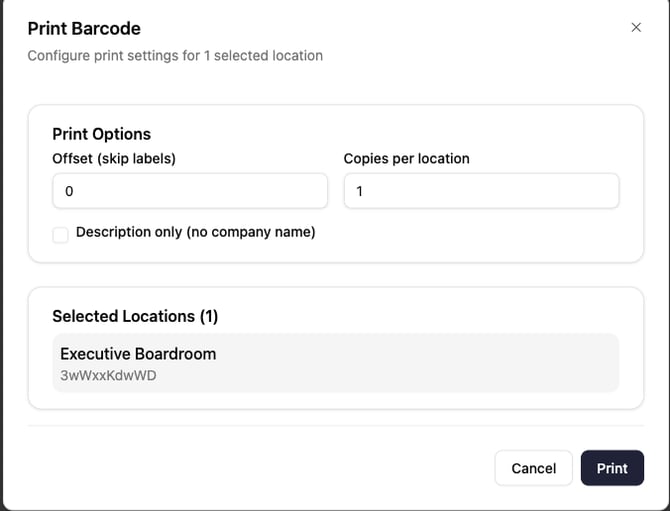 Print Barcode dialog showing Print Options with Offset, Copies per location, Description only checkbox, and the selected location The Print Barcode dialog — set Offset, Copies per location, and Description only, then click Print.
Click Print to send it to your browser's print dialog.
Label sizing tip: Barcodes are sized for 1″ × 2 ⅝″ labels, 30 per page (Avery 5160/5260/5660 and equivalents). In your browser's print settings, set left and right margins to 0″ and top/bottom to about 0.5″ so the labels line up.
Print the codes and post each one in its matching area. The code carries the full path, so "First Floor > Office 101" prints on the label for that office.
Require a Scan
Printing a code makes scanning possible. To make it mandatory at a sublocation:
- Open the ⋯ menu on that sublocation's row and choose Toggle Require Scan. To require several at once, select their checkboxes, click Batch Options, then Toggle Require Scan.
- A scan icon appears in the Scan column for that row (hover it to see Scan required).
That sublocation now shows up as a required scan point for cleaners in the mobile app. Run Toggle Require Scan again to turn the requirement back off.
Set Scan Reminders (Optional)
For areas that need to be checked on a recurring basis during a shift—restrooms, lobbies, entrances—you can remind cleaners to re-scan at set intervals.
- Open the ⋯ menu on a sublocation and choose Scan Reminders.
- Add a reminder and choose how often it should prompt the cleaner.
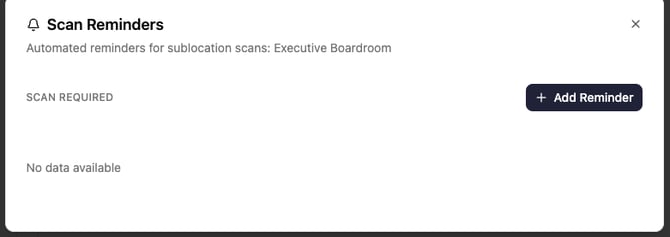 Scan Reminders dialog for the Executive Boardroom sublocation with an Add Reminder button The Scan Reminders dialog — click Add Reminder and set the interval for the sublocation.
Scan Reminders are part of the advanced tasks feature set. If the option prompts you to upgrade, your current plan doesn't include it yet.
What Cleaners See in the Mobile App
Once codes are posted and (optionally) required, here's the cleaner's side:
- From My Jobs, the cleaner taps the location, then opens the Scan Points tab.
- They tap Open scanner and point the camera at the posted code. No button press is needed—the scan registers automatically when the code is in focus.
- A required scan point shows as red until it's scanned, then turns to a green check. The shift screen tracks Scans Completed so they can see what's left.
If the cleaner scans the wrong code, the app warns that the scan doesn't match the location.
Registering an existing barcode: If an area already has a barcode you'd rather reuse, a user with the Locations (Edit) module can open the sublocation's Scan Points in the mobile app, tap Open scanner, and scan it. That code becomes the one tied to that sublocation—no need to print a new label.
Tips and Troubleshooting
I don't see the Scope of Work tab. It only appears on saved service locations. Make sure the location is saved and set as a service location, and that your role has the Locations (Edit) module.
Batch Options is greyed out. Select at least one sublocation checkbox first—batch actions act on the rows you've selected.
The cleaner says "the item you scanned does not match this location." They scanned a code tied to a different sublocation. Confirm the right label is posted in the right area, and that the cleaner is scanning from the correct location in My Jobs.
I printed codes but cleaners aren't required to scan. Printing a code doesn't require it. Use Toggle Require Scan on each sublocation that should be mandatory—look for the scan icon in the Scan column to confirm.
The barcode won't scan. Reprint with the margin settings above so the barcode isn't cut off, and make sure it printed at full size. QR codes are more forgiving on smaller labels if barcodes give your team trouble.