
Clean Smarts is capable of exporting timesheet data into a format that can be uploaded into Asure (formerly Evolution) payroll systems.
Enable the Integration
-
Option 1: Click your profile in the bottom left corner, go to Company Settings.
Option 2: Use the search bar at the top left (or press Ctrl+K) and type Company Settings. -
Select Payroll from the menu and click on the Your Payroll Software dropdown.
-
Select Asure/Evolution.
- Click Save Changes.
Setting Employee Numbers
Asure employee numbers and department codes must be defined in Clean Smarts, and these are exported in the Asure report.
- Go to Manage Users and select the employee profile you want to edit.
- Go to the Payroll tab and enter the Asure Payroll System ID.
- Save.
Setting Department Codes
- Go to Manage Location and select the location you want to edit.
- Click the General tab and scroll down to Integrations.
- Enter the Payroll System ID.
- Save the location.
Exporting Data
-
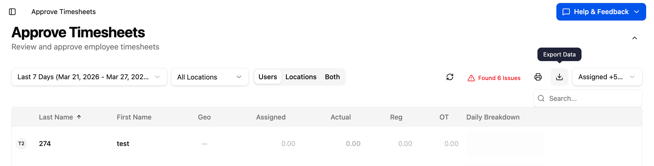
To export data, go to Time Tracking > Approve Timesheets.
-
Click on the Export Data icon button in the top-right of the screen labeled "Asure/Evolution"
Data from Clean Smarts is mapped to a .csv file in the following manner, by column:
-
Employee #: User's employee code, as entered in the "External Payroll ID" field.
-
Name: User's first and last names, concatenated.
-
Override Dept: Location's department code (location associated with the check in), as entered in the External Payroll ID field.
-
Job: Not used.
-
Shift: Not used.
-
D/E/R: Will always be "E".
-
Earn Code: If the check in has a pay code, this will be the pay code description. Otherwise "01" for regular time and "02" for overtime.
-
Rate: User's pay rate.
-
Hours: Duration of the check in, in hours.
-
Year: Year of the check in.
-
Month: Month of the check in.
-
Day: Day of the check in.
-
Hour: Not used.
-
Minute: Not used.
-
Amount: Not used.
-
Seq Number: Not used.
-
Override Division: Not used.
-
Override Branch: Not used.
-
Override State: Not used.
-
Override Local: Not used.
-
Blank Fill: Not used.
-
Deduction 3 hours: Not used.
-
Deduction 3 amount: Not used.
-
SSN: Not used.
-
Workers’ Compensation: Not used.
-
Rate Number: Not used.
-
Punch In: Formatted check in time.
-
Punch Out: Formatted check out time.
-
Override Team: Not used.
-
Check Comments: Not used.
-
Line Item End Date Year: Not used.
-
Line Item End Date Month: Not used.
-
Line Item End Date Day: Not used.